




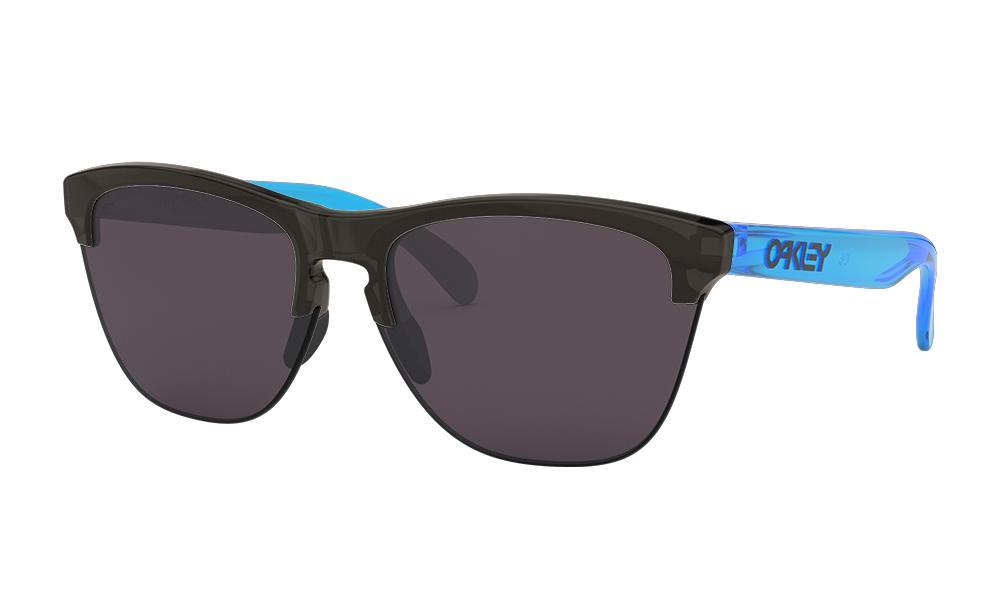

Oakley Meta AI Glasses
Trouble Shooting & FAQ
Trouble Shooting & FAQ
To use your Oakley Meta AI Glasses, please install the Meta AI App following the startup guide.
The app may be displayed in English. If you wish to display it in Japanese, please delete the app and reinstall it.
When reinstalling, please select Japanese on the language selection screen.
If you are experiencing any problems with META Glasses, please try the solutions provided on this page while reading it to the end.
The app may be displayed in English. If you wish to display it in Japanese, please delete the app and reinstall it.
When reinstalling, please select Japanese on the language selection screen.
If you are experiencing any problems with META Glasses, please try the solutions provided on this page while reading it to the end.
■ Oakley Meta AI Glasses Trouble Shooting & FAQ
General
-
[Q1-1] SOMETHING WENT WRONG WHILE TRYING TO MAKE A CALL OR SEND A MESSAGE WITH MY META GLASSES. WHAT SHOULD I DO?When attempting to make a call or send a message, you may receive a message stating: “Something went wrong. Double-check that Messenger and Bluetooth are connected.”
If you see this message while trying to make a call or send a message on Messenger, try the following steps to fix the issue.
Update and log in to the Messenger app- Open Apple’s App Store and search for Messenger.
- Tap Update to update the app.
- If the app says Open that means the app is up to date.
- Open Messenger and sign in.
Keep in mind, closing the Messenger app can interrupt hands-free calling and messaging.
Keep in mind, closing the Messenger app can interrupt hands-free calling and messaging.
- Open the Settings app on your iPhone.
- Tap Privacy then tap Bluetooth.
- Find Messenger and turn the toggle on.
- Open Meta AI app tap your profile picture in the top right.
- Tap Calling and messaging then tap Messenger.
- Tap Disconnect Messenger.
- From the Meta AI and tap your profile picture in the top right.
- Tap Calling and messaging then tap Connect Messenger.
-
[Q1-2] I RECEIVED A BLUETOOTH CONNECTIVITY ERROR. WHAT SHOULD I DO?Here are some things you can try:
- Move your phone closer to your glasses, and try again.
- In your phone's Bluetooth settings, confirm that your Bluetooth is on and your glasses are connected.
- Turn Bluetooth off and on again.
- Close the Meta AI app and then restart it.
- Restart both your phone and glasses.
- Unpair your glasses from the Meta AI app, and then remove them from your phone's Bluetooth list of devices. Then, pair your glasses again.
-
[Q1-3] MY CAPTOUCH AND CAPTURE BUTTONS DON'T SEEM TO BE WORKING. WHAT SHOULD I DO?If glasses do not properly fit the user, you may be having issues with wear detection. You can first try taking the glasses off then put them back on. If that does not work, try powering off the device and powering back on. Finally, if that does not succeed, you can disable wear detection in Settings > Your Glasses > Wear Detection. This will ensure the glasses are treated as "On" whenever powered on and hinges are open.
Note: When Wear Detection is turned off, some features like auto-pause/auto-play music and Verified Sessions will be disabled.
*Disabling "Wear Detection" will disable some functions, such as music playback when wearing the device is detected and pause when the device is removed.
If the problem persists after troubleshooting, please contact our customer service Ray-Ban Oakley AI Glasses. -
[Q1-4] IT SOUNDS LIKE MY GLASSES ARE REGISTERING TAPS, BUT I AM NOT DOING ANYTHING. WHAT SHOULD I DO?Wet hair, helmets, hats, and other head accessories can occassionally be false-registering as taps on capacitive touch.
If you commonly use your glasses in these situations, consider re-mapping the Tap & Hold gesture to 'none'.
You can do this by going to Settings > Your Glasses > Gestures > Captouch.
This will prevent your glasses from triggering new actions like Assistant Wake or Spotify Tap. If you hardclose media apps on your phone, single tap will no longer pause/play any media sessions. -
[Q1-5] I AM GETTING LONG VOICE MESSAGES/ASSISTANCE. HOW DO I STOP/INTERRUPT THEM?You can cancel or exit any assistance function or inbound notification by doing a Tap & Hold gesture on the captouch sensor.
-
[Q1-6] HOW DO I FILE A BUG/REPORT ON ISSUES I AM EXPERIENCINGTo submit a bug on an issue you are seeing, go to Settings, Help & Support. Make sure 'shake phone to report a problem' is on. Then you can shake your mobile device back and forth to trigger our bug reporting feature. In the bug reporting form, please share details on the bug you are experiencing so Meta Help Center team can proactively assist you.
-
[Q1-7] I RECEIVED A WI-FI ERROR WHILE TRYING TO INSTALL AN UPDATE. WHAT SHOULD I DO?Here are some things you can try if tapping the “Try again” button isn’t helping:
- On your phone, close the Meta AI app and reopen it.
- Turn off your glasses, turn them on again, and wait until the green LED has turned off before trying again.
- Turn off Bluetooth and Wi-Fi on your phone and turn them on again.
- Restart your phone.
- If you have already set up your glasses go into Settings > Glasses and privacy > Your glasses and unpair your glasses from the app and then remove them from your phone’s Bluetooth setting. Then try again.
- Press and hold the capture button, then turn off your glasses, turn them on again, release the capture button.
-
[Q1-8] WHAT CAN I DO WHEN I AM NOT CONNECTED TO THE META AI APP?Even when your glasses are not connected to the Meta AI app you can capture photos and videos, check your glasses battery level if you enabled Voice controls, and listen to audio form a phone you are connected to over Bluetooth.
-
[Q1-9] HOW DO I RESTART MY GLASSES?To restart your glasses slide the “On/Off button” back (Switch Off) and then forward (Switch On). After your glasses wake up, they will be reconnected to the app within a few minutes. This action will not cause you to lose any on-glasses media or cause the glasses to unpair from the Meta AI App.
If that does not correct the issue, then try force restarting. -
[Q1-10] HOW DO I FORCE RESTART MY GLASSES?To force restart your glasses:
- Press and hold the capture button at the same time as turning the power switch off (pull the switch back towards the back of the glasses) and then ON (push the switch forward towards the front of the glasses). Then release the capture button.
- After turning the power switch to ON, release the capture button.
- It may take a few minutes for your glasses to re-establish a connection with the app.
If your glasses don't reconnect to the app within a few minutes, you may need to unpair the glasses from the Meta AI app and from the list of bluetooth devices on your phone, and then repeat the pairing procedure. -
[Q1-11] HOW DO I FACTORY RESET MY GLASSES?Warning: This will delete all the captures on your glasses and require you to unpair/ repair your glasses through the app.
To factory reset your glasses:- Close the right temple arm.
- Press the capture button 5 times until the user LED turns orange.
- Press and hold the capture button until the user LED starts flashing.
- Release the capture button and wait for the LED to cycle through white and then green before turning off to indicate factory reset is complete.
- You'll then need to un-pair and re-pair your glasses with the Meta AI app.
-
[Q1-12] I HAVE A BLUETOOTH CONNECTION ERROR WITH OAKLEY META GLASSES. WHAT SHOULD I DO?If you receive a Bluetooth connection error while using your glasses, here are some things you can try:
- Move closer to your phone.
- Keep your phone in front of you, or in a front pocket.
- Turn off or disconnect other Bluetooth devices from your phone.
Connection issues while making video calls on Android
If you're making a video call on your smart glasses using an Android phone and experience poor connection, following the steps below may improve your experience:- Turn on Wi-Fi on your phone.
- Turn off VPN on your phone.
- Turn off Hotspot on your phone.
There is a known issue for users on Pixel phones running Android 14. While sharing your view on a call, the connection may lag or disconnect. Lock your phone to improve your view sharing experience. You can still share your view on a call while your phone screen is off. -
[Q1-13] WHERE CAN I GET MORE INFORMATION OR SUPPORT IF I DON'T FIND MY ANSWER IN THE TROUBLE SHOOTING?We apologize that you couldn't find the answer you were looking for. If this troubleshooting process doesn't resolve your issue, please contact our customer service Ray-Ban Oakley AI Glasses shown at the end of this page. You can find more information about customer support there. For more information about the Meta AI app, please visit the Meta AI Help Center.
-
[Q1-14] THE MESSAGE "THESE GLASSES ARE ALREADY REGISTERED TO ONE META ACCOUNT" APPEARED. ATTEMPTING TO SET UP META GLASSES THAT ARE NOT REGISTERED TO AN ACCOUNT PREVENTS THE SETOUP FROM CONTINUING.This will reset any already registered Meta Glasses to their factory settings.
This will unpair them from the Meta AI app.
Please pair your Meta Glasses again.
Power & Charging
-
[Q2-1] I LEFT MY CHARGING CASE PLUGGED IN FOR A LONG TIME (E.G. OVERNIGHT), AND IT'S STILL NOT CHARGED. WHY?(Things to check in advance)
While the majority of USB-C chargers should work with the charging case, there are some specific chargers that might not be compatible with the charging case.
If you are using one of these incompatible chargers, you might see:
- A consistent and persistent pulsing orange or green pattern on charging case LED.
- Missing charging icon in Meta AI app.
If you are running into issues with charging your charging case, try connecting another USB-C cable to your case. If the case is still not charging, consider using another adapter.
If the case is still not charging, you can do a reset with the following actions:- Take glasses out of case.
- Press and hold the back button on case for at least 16 seconds, or until the LED begins flashing white.
- Release the button and wait for the LED to stop flashing white.
- Redock the glasses and plug in the case again to charge.
-
[Q2-2] DESPITE HAVING SOME BATTERY LEFT, I AM UNABLE TO RECORD VIDEOS. WHY?When the device's battery level is below 15%, the video capture will be automatically disabled. This is because video recording consumes a lot of power, and this prevents the device from shutting down during recording.
*The required battery level varies depending on the ambient temperature. Lower temperatures will require more battery power. -
[Q2-3] WHY IS MY CASE INDICATOR PULSING OR SOLID RED WHEN I DOCK GLASSES?If you dock your glasses into the case and see either a solid red or pulsing red animation from the case LED - this signals that there is a charging error. Charging errors can occur if:
- Glasses or case are too hot to charge
- Liquid detected on the glasses or case
If glasses or case are too hot, move out of the sun and to cooler conditions to enable charging.
If glasses or case have liquid present, undock the glasses, clean / dry the nosebridge area, redock glasses into case. You may have to wait for glasses & case to fully dry to enable charging.
If the problem persists after troubleshooting, please contact our customer service Ray-Ban Oakley AI Glasses. -
[Q2-4] WHY IS MY CASE NOT RESPONDING?If your charging case is no longer responding to button presses or case open/close events, it could be either:
- Your case has a dead battery and needs to charge
- You interrupted a case update
If case has a dead battery, connecting the case to a valid charger via USB-C cable should result in an orange pulsing pattern on case indicator before normal case operation resumes.
If you may have interrupted a case update, dock the glasses again with the switch on. Case functionality should be recovered after the update completes. -
[Q2-5] I SEE A RED BLINKING LIGHT (CHARGING ERROR) AND POWER ISSUES. WHAT SHOULD I DO?There are a few reasons why you may be receiving a charging error:
Liquid detected: Liquid is interfering with the charging interface between the nose bridge of your glasses and the charging case. Wipe the charging contacts clean on both devices and try again.
High temperature: The charging case has reached a temperature that is too high to charge your glasses. Move your case into a cooler location.
Incompatible charger: Case cannot charge due to the charging cord or power adapter being used. Try using a different cable or power adapter.
Your glasses may not be powering on due to not being able to charge when docked. Dried sweat, dirt, and liquid can all cause interference between the nose bridge of your glasses and the charging case. Thoroughly clean both devices, then try to charge again. -
[Q2-6] Charging case compatibilityThe charging case for Meta Glasses is designed specifically for each model. Therefore, you should absolutely avoid putting other models or regular eyewear products in it. This may lead to damage or deformation of the charging connector or the inside of the case.
Pairing
-
[Q3-1] MY GLASSES AREN'T PAIRING WITH THE APP, WHAT SHOULD I DO?If your glasses aren’t pairing with the Meta AI app, try the following troubleshooting steps.
Make sure that:
- Your glasses are charged and turned on: The power switch should be in the ON position. The white LED will blink while your glasses turn on. When it turns solid green, you’re ready to continue.
- Bluetooth is enabled on your phone.
- Your glasses are unpaired on your phone. If you are on iOS, go to your phone's bluetooth settings. Tap the info icon next to your glasses from the list of devices. Tap Forget This Device. This step isn't necessary on android devices.
- The device is in pairing mode: Place the glasses inside the case then press and hold the button on the backside of the case for 5 seconds. The light blinks blue, indicating that the device is ready to pair. Your glasses will appear in the app when they're in pairing mode, which can take up to 10 seconds.
If your Oakley Meta glasses still don’t appear in the app, complete the following steps:- Slide the "On/Off button" first back (Switch Off) and then forward (Switch On)
- Try quitting the Meta AI app and reopening it.
-
[Q3-2] I PAIRED MY META GLASSES WITH ANOTHER DEVICE, BUT NOW I CAN'T PAIR THEM WITH MY SMARTPHONE. WHAT SHOULD I DO?Remove the glasses from other devices (such as an iPad or computer).
Re-pair the glasses with your smartphone using the Meta AI app.
If the glasses do not enter pairing mode (the blue LED on the case does not light up when the glasses are in the case and powered on), try a force restart.
Camera
-
[Q4-1] MY CAMERA WON'T TAKE PICTURES USING VOICE CONTROL. WHAT SHOULD I DO?
- Ensure your Meta Glasses are fully charged.
- Ensure the Meta AI app is up to date.
- Ensure the Meta Glasses firmware is up to date.
- Ensure the temples of your Meta Glasses are open (make sure the glasses are not placed with the hinges closed).
- Ensure Meta AI is enabled in the settings.
- Turn your Meta Glasses off and on again, then try again.
- Force restart your Meta Glasses and try again.
- Reset your Meta Glasses to factory settings and try again.
Audio
-
[Q5-1] WHY ARE CALL RECEIPIENTS HAVING TROUBLE UNDERSTANDING ME WHEN I CALL THROUGH THE GLASSES?If call recipients are having trouble hearing you on calls (audio is broken/choppy/or extremely quiet) then:
- Turn off toggle in Meta AI app
Try calling again:
- If working (call back the recipient, if they can hear you better in same environment as before) then user should keep the toggle off
- If still not working, then another issue with calling is going on, user should keep toggle turned on and try disconnecting/reconnecting your glasses
If you are having trouble hearing the other person's voice or your own voice during a voice call, the following factors may be the cause:
- AI glasses volume settings
- App volume settings
- Poor network connection causing interruptions
- Unstable pairing status
- Battery level of the AI glasses or smartphone
- Being outdoors in a windy environment during the call
- Moisture on the microphone, obstructing the sound
-
[Q5-2] PEOPLE CAN’T HEAR ME ON CALLS. WHAT SHOULD I DO?If people on a call have trouble hearing you (audio is broken, choppy, or extremely quiet), the microphones on your glasses may need to be adjusted.
Follow these troubleshooting steps:
- From the Meta AI app, tap the settings gear in the bottom right.
- Tap Glasses & privacy, or tap your glasses then tap Glasses & privacy.
- Tap Your glasses.
- Tap Microphone troubleshooting.
- Tap the toggle next to Microphone adjustment to turn this setting on.
- Try to call someone again with the toggle already turned on. Please do not turn the toggle on or off mid-call. Turn the toggle on or off before the call. Turning the toggle on or off mid-call can impact the call audio.
If people on a call can hear you better now, keep Microphone adjustment turned on permanently for the best experience.
If people on a call are still having trouble hearing you, turn Microphone adjustment off and try unpairing and re-pairing your glasses. -
[Q5-3] THE SPEAKER SOUND IS MUFFLED. THIS IS LIKELY DUE TO A BLOCKAGE IN THE UPPER OR LOWER SPEAKER MESH. WHAT SHOULD I DO?Please follow these steps for speaker mesh cleaning:
Top Speaker Meshes:
- Moisten the Meshes:
Apply a few droplets of clean water directly onto the top speaker meshes. Ensure the water is evenly distributed across the mesh surface. - Position the Meta Glasses:
Place the Meta Glasses on a stable surface with the temples open, ensuring the top speaker meshes are facing upward. This position allows the water to act on the residues effectively. - Dissolution Time:
Allow the water to sit on the meshes for approximately 15 minutes. This duration helps in dissolving any accumulated residues that may be causing blockage. - Cleaning the Meshes:
After the waiting period, gently clean the dissolved residues using a microfiber cloth or a soft-bristled toothbrush. Ensure that the cleaning is thorough but gentle to avoid damaging the mesh.
Bottom Speaker Meshes:
Repeat the Process. - Moisten the Meshes:
META App
-
[Q6-1] HOW CAN I UNPAIR AND RE-PAIR META GLASSES WITH THE META AI APP?In some cases, you may need to unpair and re-pair your Meta Glasses with the Meta AI app. Unpairing your glasses will not change or erase any settings.
To unpair your glasses from the Meta AI app:- From the Meta AI app, tap the gear symbol in the bottom right.
- Tap Your glasses, or select the device you want to manage settings for then tap Your glasses.
- Tap General.
- Tap Unpair glasses.
- Tap Unpair.
To re-pair your glasses with the Meta AI app:- Remove your glasses from the case.
- Turn your glasses on by sliding the power switch on the left frame towards the front of the glasses.
- Dock the glasses inside the case.
- When the case LED starts flashing blue, your device is ready to pair with the Meta AI app. If your device does not automatically go into pairing mode, you can manually turn pairing mode on by pressing and holding the button on the back of the case for at least 5 seconds.
- From the Meta AI app, tap the gear symbol in the bottom right.
- Tap Add device in top right and follow the on-screen instructions.
-
[Q6-2] WHAT DO I DO IF I TOOK CAPTURES BUT THE IMPORT BUTTON DOESN'T SHOW UP IN THE APP?The Import button should be visible if the glasses are paired with the app, the glasses are on, the phone's Wi-FI and Bluetooth are on, and there are pending captures. If the Import button is not visible, try restarting the glasses (turn them off, then turn them on) and restarting the app. If this also doesn't solve the issue, try unpairing and re-pairing the glasses and make sure they are are not paired to another phone.
*In rare cases, interference from other Bluetooth devices may prevent the AI glasses from being recognized properly. Try turning the AI glasses on and off, or restarting your smartphone to prompt the device to reconnect. -
[Q6-3] META GLASSES CANNOT CONNECT WITH A PARTNER APP TO SHARE MY VIEW. WHAT SHOULD I DO?This error may appear when trying to share your view with a partner app (WhatsApp, Messenger, or Instagram). Here are some things you can try:
- Close and reopen Meta AI app and the relevant app.
- Restart your glasses.
Voice Control
-
[Q7-1] VOICE CONTROLS ARE NOT RESPONDING CONSISTENTLY WHEN I SAY “HEY META” OR “OK META. WHAT SHOULD I DO?If voice controls are not responding consistently when you say “Hey Meta” or “OK Meta”, follow these troubleshooting steps:
- From the Meta AI app, tap the settings gear in the bottom right.
- Tap Voice, or tap your glasses then tap Voice.
- Ensure the toggle next to Voice is turned on.
- Tap "Hey Meta" preferences.
- Ensure the toggle next to "Hey Meta" and Wake sound are turned on.
- Try a voice command (example: "Hey Meta, how much battery is left?").
- If the voice command was recognized, you should see the notification LED blink white in response. With the Wake sound toggle is on, you will also hear a sound when voice controls activate in response. - If voice controls still aren't responding, toggle off both the Voice and "Hey Meta" settings, then turn them back on and try another voice command.
If this doesn’t resolve your issue, the microphones on your glasses may need to be adjusted. Follow the steps below to adjust your microphone settings.。
To adjust the microphone settings on your glasses:- Ensure you are on the latest software and app version
- App version 143 or above.
- Ensure your glasses are up to date (from Settings, tap Glasses & Privacy, then tap Your Glasses, thentap Updates.) - From the Meta AI app, tap the settings gear in the bottom right.
- Tap Glasses & privacy, or tap your glasses then tap Glasses & privacy.
- Tap Your glasses.
- Tap Microphone troubleshooting.
- Tap the toggle next to Microphone adjustment to turn this setting on.
- Try another voice command.
- If voice commands are working now, keep Microphone adjustment turned on permanently for the best experience.
- If voice commands still aren’t working, turn off Microphone adjustment, and try unpairing and re-pairing your glasses. If that doesn't solve the issue, you can try a factory reset, or contact the Support. -
[Q7-2] I'M HAVING ISSUES USING "HEY META" WITH META COLLECTION. WHAT SHOULD I DO?"When you say "Hey Meta" or "OK Meta", the notification LED will pulse white and an earcon will play to let you know the glasses are ready for your voice command. If you don't get a response to your voice command, check the following:
- Make sure your glasses are on and the battery is charged.
- Check that both Voice and ""Hey Meta"" are enabled in the settings of Meta AI.
- Make sure there's no background noise that may interfere with voice controls.
- Make sure your phone is within Bluetooth distance of your glasses.
For more detailed instructions, please see here. -
[Q7-3] WHY AM I HAVING TROUBLE INVOKING VOICE COMMANDS AFTER SETTING VOICE COMMANDS UP IN MY APP?If 'Hey Meta' or 'OK Meta' is not responding consistently after setting up voice commands then:
- Go into your glasses' Voice settings in the Meta AI app and check that the Voice toggle is on.
- Go into ""Hey Meta"" preferences from the Voice settings and make sure that the "Hey Meta" toggle is on.
- You can also turn on the Wake sound toggle here if it is not already on.
- Try saying 'Hey Meta' or 'OK Meta' again.
- If the wake word was recognized, you should see the LED blink white in response. If the Wake sound toggle is on, you will also hear an earcon in response.
- If that still doesn't work, try toggling off and then back on both the Voice and "Hey Meta" options, and try again.
- If still not working, then another issue with voice commands is going on, likely that a microphone is blocked.
To troubleshoot a mic being blocked resulting in no earcon response from 'Hey Meta' or 'OK Meta':
1. Turn off toggle in Meta AI app
2. Try 'Hey Meta' or 'OK Meta' again:
3. If working (Earcon response to Hey Meta or 'OK Meta') then user should keep the toggle off.
FAQ
-
[Q8-1] WHERE CAN I FIND MORE INFORMATION ON PRIVACY AND DATA RELATED TO THE META COLLECTION AND META AI APP?All information acquired through AI glasses and the META AI app will be processed and stored in accordance with Meta's terms of service.
For details, please refer to Meta Wearable Products
■ Information Sharing with Meta
Luxottica Group S.p.A. (hereinafter "Luxottica") exchanges specific information with Meta regarding AI glasses manufactured and sold by Luxottica. The purpose of this information exchange is to fulfill Luxottica's contractual obligations and manage customer service requests from users. For example, if a user contacts Luxottica regarding a problem they have experienced, Luxottica will share information such as the user's name and email address with Meta. Meta will then share information with Luxottica to resolve the issue, including steps to resolve the problem using the user's Meta account. Furthermore, Meta will share information with Luxottica regarding these specific AI glasses purchased through Luxottica's proprietary channels (such as the date and time the AI glasses were first used), and will also exchange aggregated information and insights regarding marketing, usage, sales, and post-sales activities with Luxottica. Luxottica will not directly obtain information from users' use of the AI glasses or the Meta AI app, such as user photos or videos. All information provided by users to Luxottica in connection with the purchase of AI glasses is subject to Luxottica's terms and policies.
■Regarding Use by Children
As stated in the supplementary clauses of the Meta Platforms Technologies Terms of Use, children under the age of 13 may not use Meta wearable products. Therefore, Meta accounts for children aged 10 to 12 (this age may vary by region) cannot be used to log in to the companion app (hereinafter, "Meta AI app"). -
[Q8-2] Integration of the META AI app with the cloud.When you ask META AI a question through Meta Glasses, an image of that moment is captured and uploaded to the META cloud. After AI analysis is performed in the cloud, you will receive an AI-generated voice response through Meta Glasses. Data uploaded to the cloud is automatically deleted after 30 days. Data deleted from the device or the META AI app is also deleted from the cloud. Cloud media can be managed at any time from ""Device Settings"" in the Meta AI app. For details, please see here.
All data provided for AI analysis (*1) is used to improve and develop META products and enhance the accuracy and functionality of AI analysis. All of this data is collected, analyzed, and retained in accordance with META's privacy policy.
*1 Objects, text, and information that can be read from them within image data. -
[Q8-3] The chat history with META AIOpen the META AI app's home screen, select the two-line icon in the upper left corner, and then refer to "Chat." The chat history, which displays the Meta Glasses icon on the right, is what was captured by voice commands.
-
[Q8-4] WHERE CAN I FIND META HEALTH & SAFETY INFORMATION?You'll find health & safety information relating to the Meta in your glasses Safety & Warranty document.
-
[Q8-5] HOW SHOULD I CLEAN MY META GLASSES?Camera Lens, Meta Glasses Lens
First, remove dust and debris using a brush or blower. Finally, gently wipe the lens surface with a cleaning cloth. This is a delicate part, so handle with care.
Meta Glasses Body (excluding the lens)
Use a cloth dampened with diluted mild detergent to remove dirt. Finally, gently wipe with a cleaning cloth. Ensure it is completely dry before returning it to the charging case.
*Avoid using dirty cloths or cloths containing abrasives.
*Wet wipes containing alcohol may erase markings, etc. Never use them.
*Never immerse in water, such as by rinsing with tap water. -
[Q8-6] CAN I REPLACE THE BATTERY IN MY META GLASSES OR CHARGING CASE?The Meta Glasses and the battery built into the charging case are not replaceable. Please do not attempt to disassemble the device yourself.
-
[Q8-7] HOW DO I RECYCLE AN ELECTRONIC PRODUCT?In the course of our lives, each of us throws away significant amounts of electrical and electronic equipment. We need to protect the environment by adopting sustainability criteria. Our products may contain hazardous materials which, if not disposed of properly, can have a negative impact on health and the environment. We're committed to the safe recovery of waste electrical and electronic equipment.
Obligation of Separate Disposal and Environmental Rationale
The separate disposal of electronic devices and batteries helps conserve natural resources and ensures that recycling occurs safely, protecting both the human health and the environment.
Potential Effects on the Environment and Human Health
Improper disposal of electronic devices and lithium-ion batteries may cause harmful effects on the environment and human health due to the presence of hazardous substances such as heavy metals and toxic chemicals.
Take-Back Options
As an alternative to collection centers, Meta devices can be returned to affiliated stores that offer WEEE take-back services.
Consumer Role in Facilitating Reuse, Recycling, and Recovery of WEEE
Consumers play a crucial role in ensuring the proper disposal and end-of-life of electronic products, thus contributing to resource reuse, recycling, and other forms of product recovery.
Meaning of the Symbols on Electronic Devices
The crossed-out wheeled bin symbols below mean that, according to local laws and regulations, Meta products must be disposed of separately from other household waste.
Battery Removal and Type Information
The battery integrated in Meta Glasses cannot be removed by the end-user. For devices with removable batteries, such as Meta Remote Control, please follow the User Guide instructions for safe battery removal before its disposal.
■ LED Indicator
| Category | Indicator | Description |
|---|---|---|
| Meta Glasses | Orange Flash | Low battery (with alert) |
| Meta Glasses | Red Flash | Automatic shutdown |
| Meta Glasses | Blue Flash→Blue Light | Pairing mode |
| Meta Glasses | White Flash→Green Light | Power on |
| Meta Glasses | White Pulse | Voice command in use |
| Meta Glasses | White Flash | Incoming call |
| Meta Glasses | White Light | Photo/video/live streaming in progress |
| Charging Case | Green Light | Fully charged |
| Charging Case | Orange Light | Charging |
| Charging Case | Orange Flash | Low battery |
| Case (Set the Glasses) |
Blue Flash→Blue Light | Pairing mode |
| Case (Set the Glasses) |
Green Light | Glass fully charged |
| Case (Set the Glasses) |
Orange Light | Charging |
| Case (Set the Glasses) |
Red Flash | Charging error |
If the problem persists after troubleshooting, please contact our Customer service Ray-Ban Oakley AI Glasses.
Luxottica Japan
Customer service Ray-Ban Oakley AI Glasses
0120-990-307
10:30 - 17:30 (Excluding weekends, national holidays & new year holidays)
*Depending on your inquiry, we will connect you with the appropriate contact.
Luxottica Japan
Customer service Ray-Ban Oakley AI Glasses
0120-990-307
10:30 - 17:30 (Excluding weekends, national holidays & new year holidays)
*Depending on your inquiry, we will connect you with the appropriate contact.